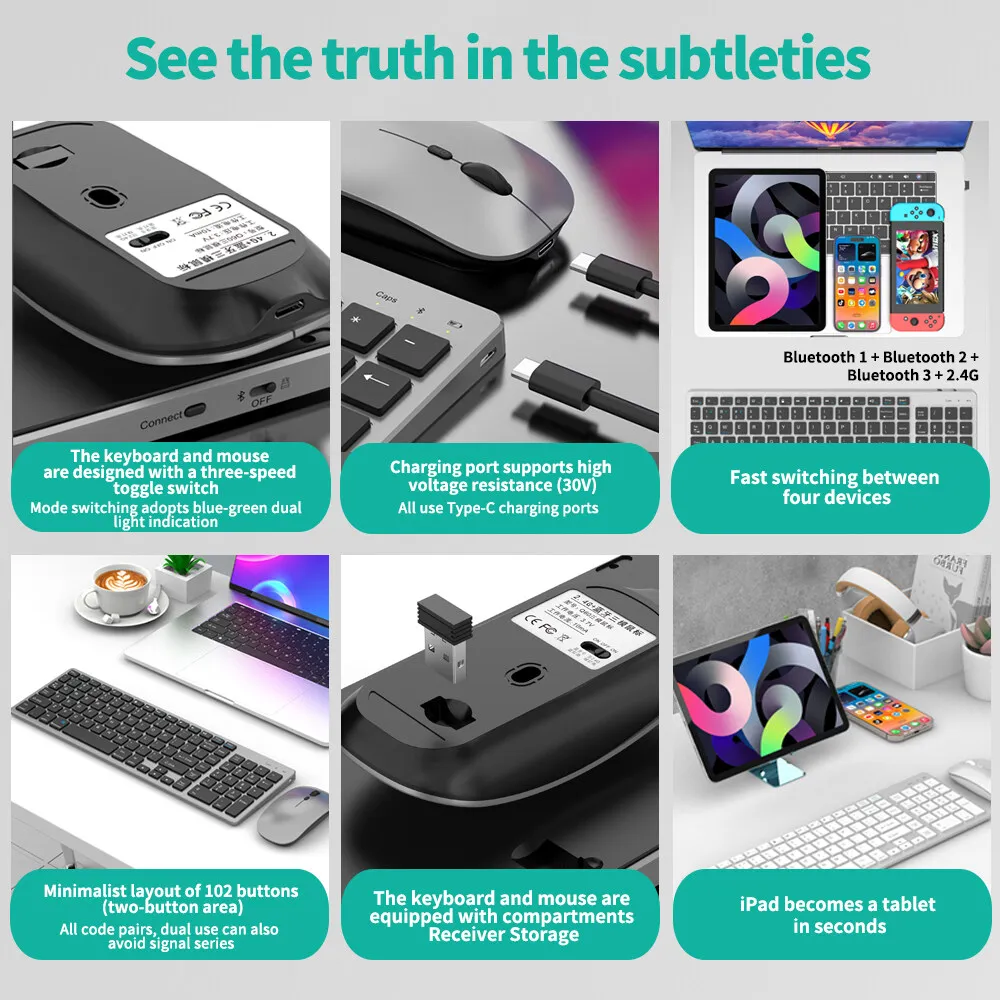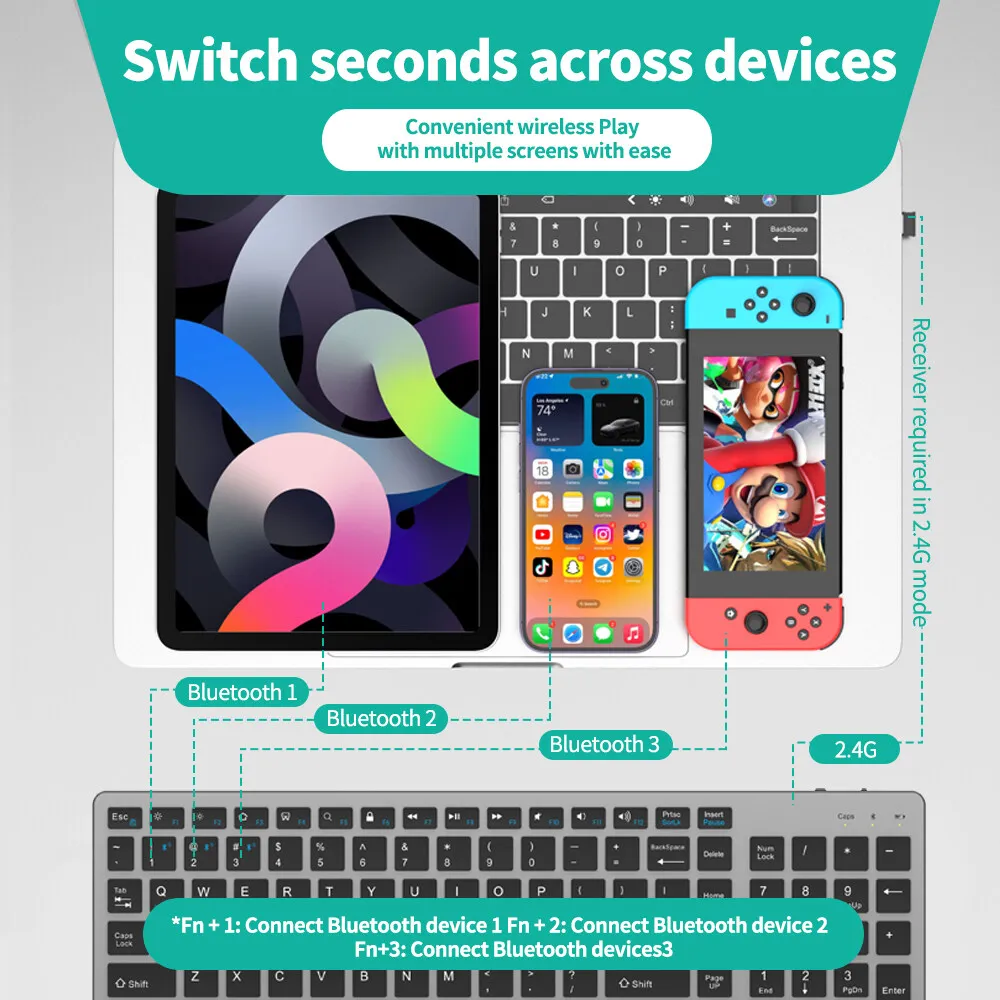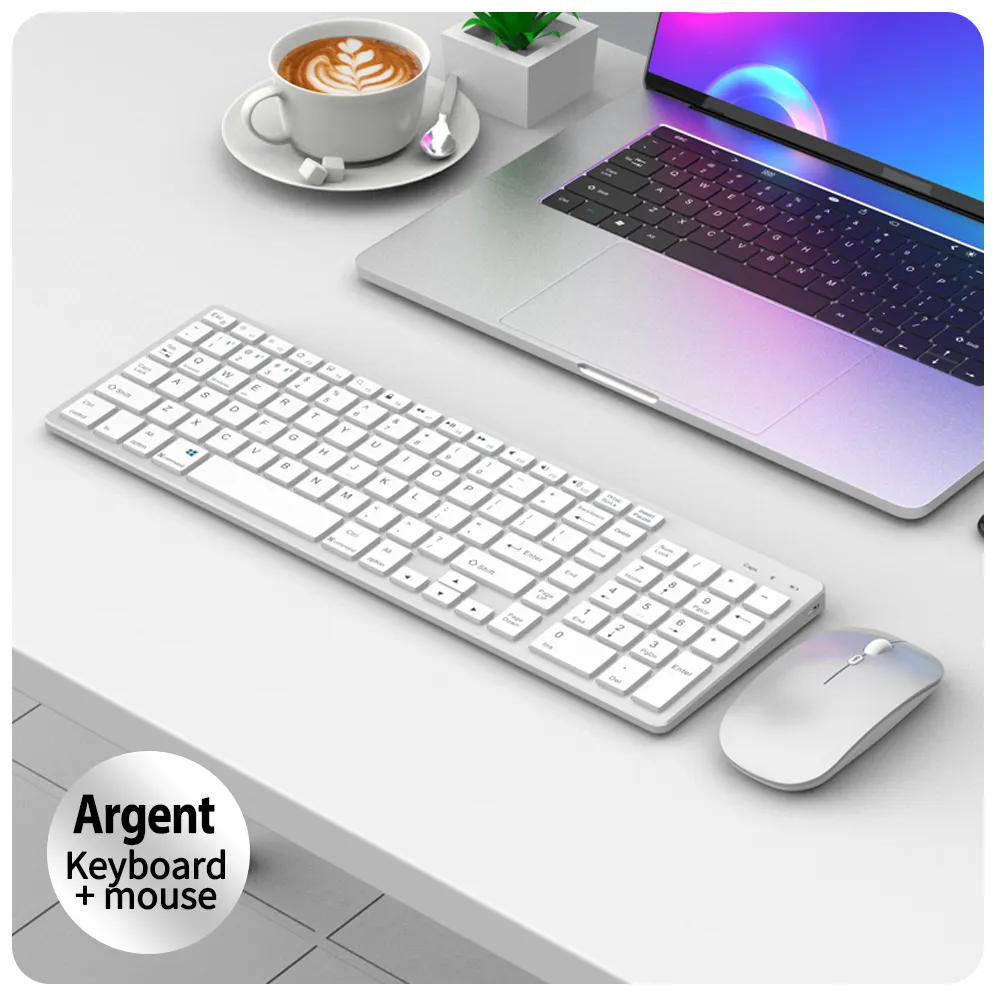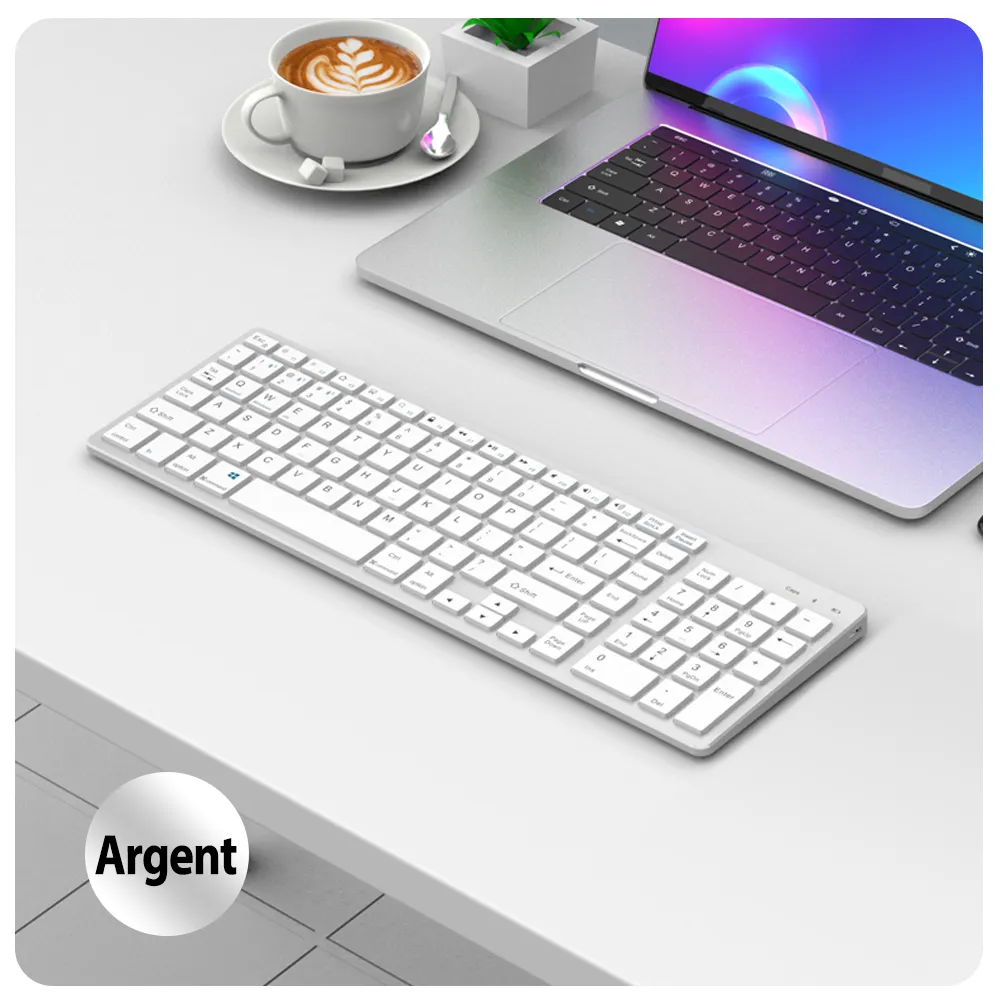





⌨️Bluetooth 1+Bluetooth 2+Bluetooth 3+2.4G
Keyboard and mouse are designed with three-speed toggle switchThe mode switching adopts blue-green dual light indication
The charging port supports high voltage resistance (30V)All use Type-C charging port
four devices Fast switching between
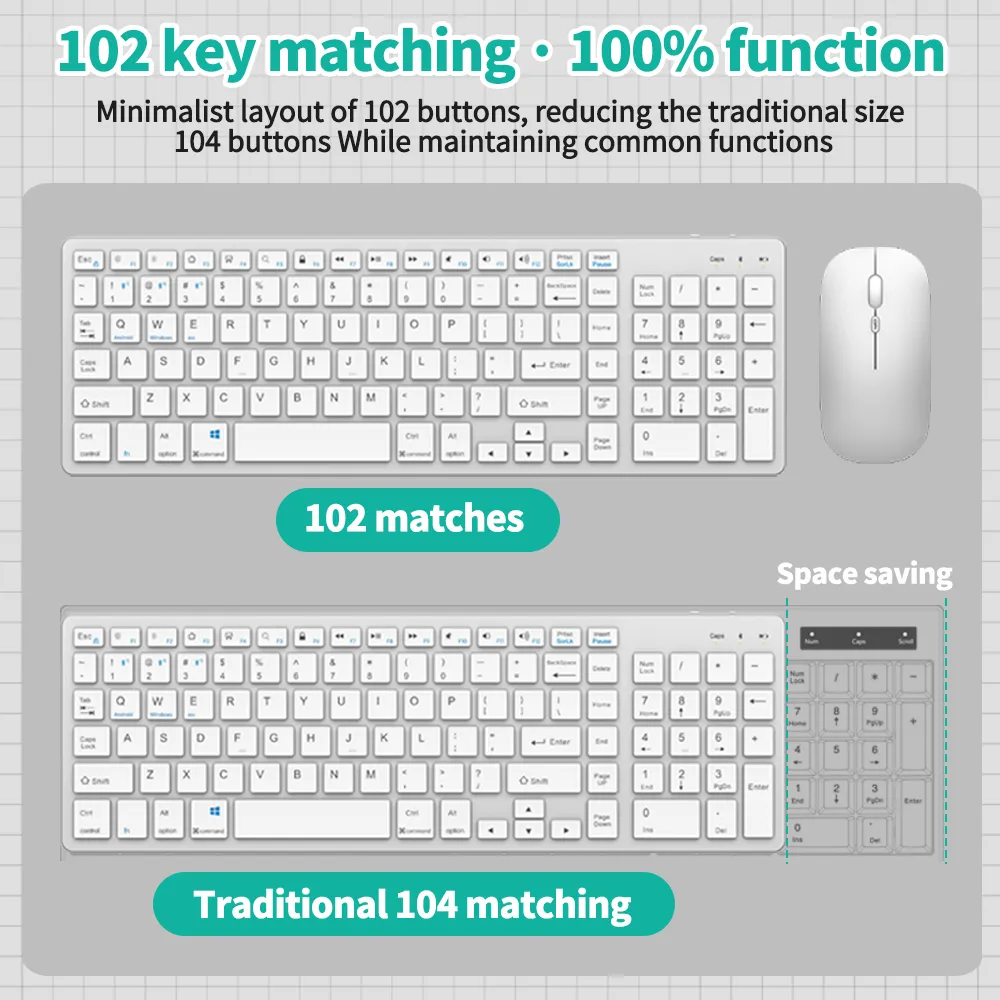
Minimalist layout 102.button(two-button area)All code pairs,dual use can also avoid signal series
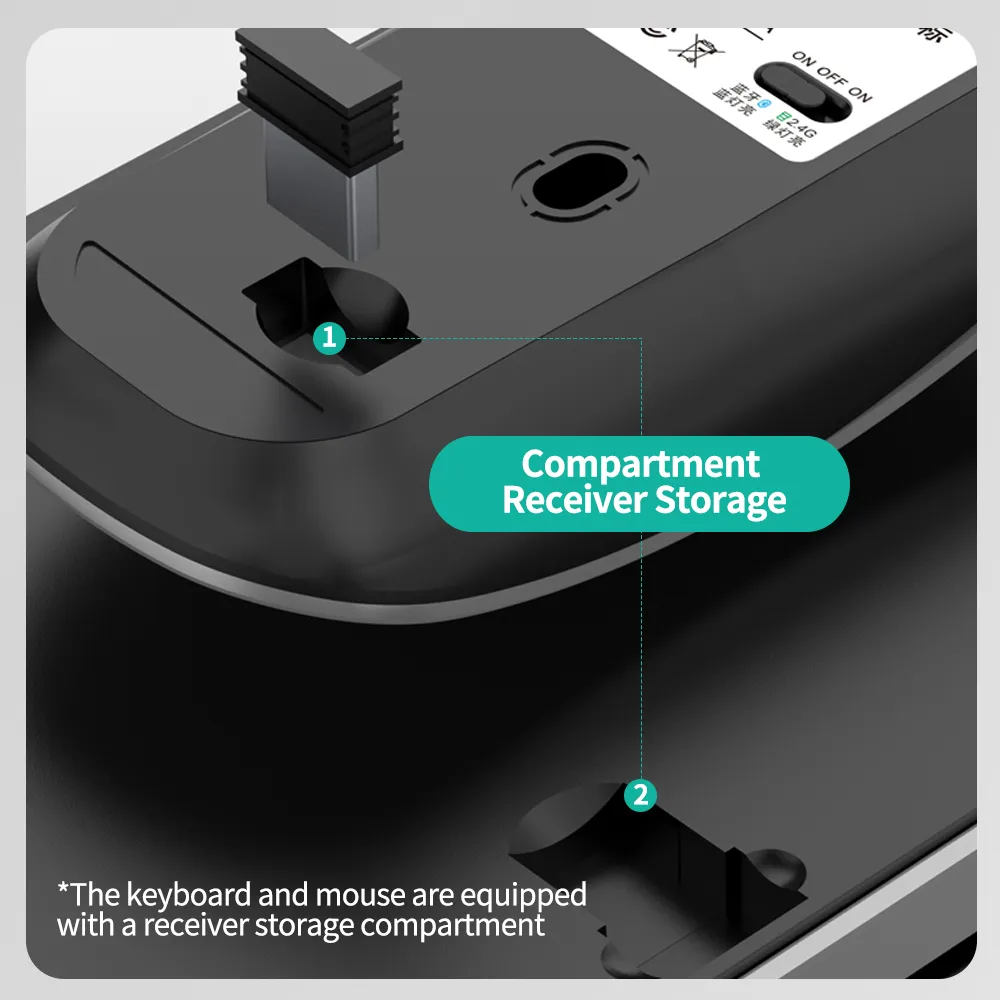
Keyboard and mouseequipped with receiver storage compartment
iPad becomes a tablet.
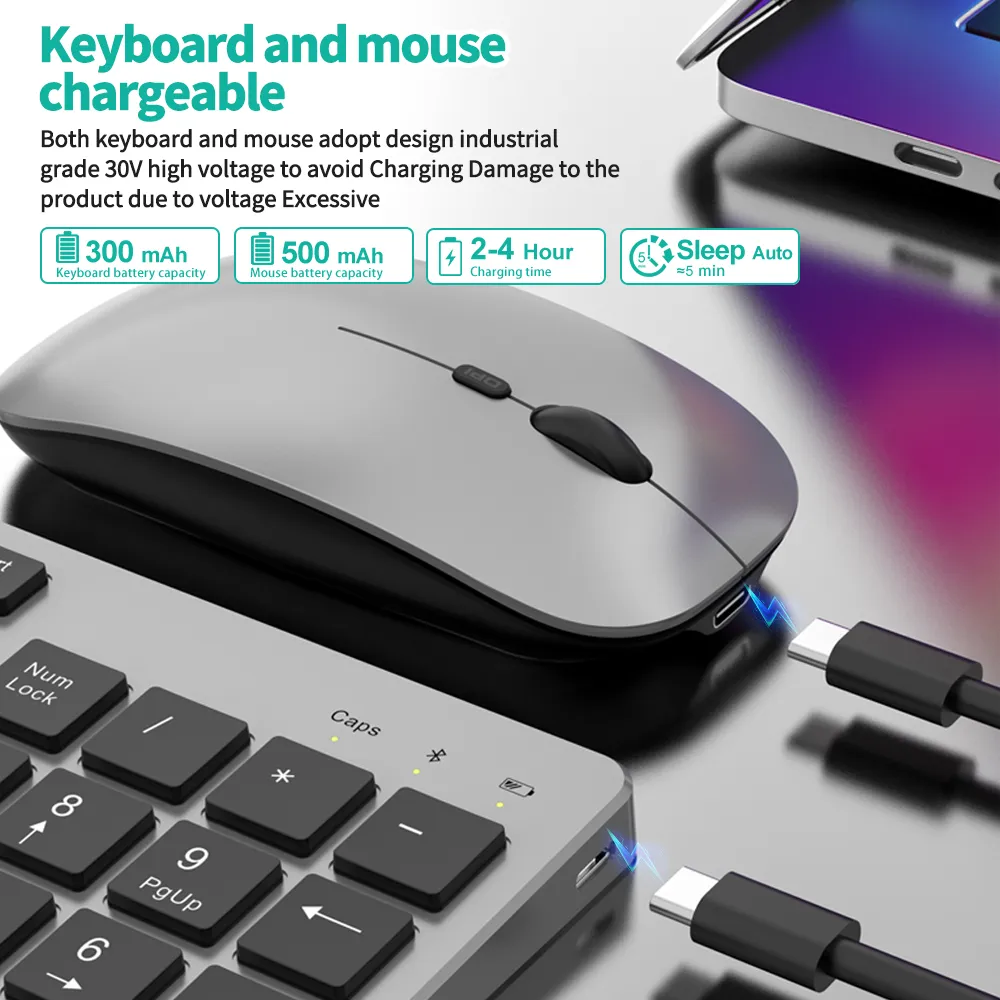
📣Keyboard and mousecan be charged
Both keyboard and mouse adopt industrial-grade 30V high-voltage design to avoid charging Damage to the product due to excessive voltage
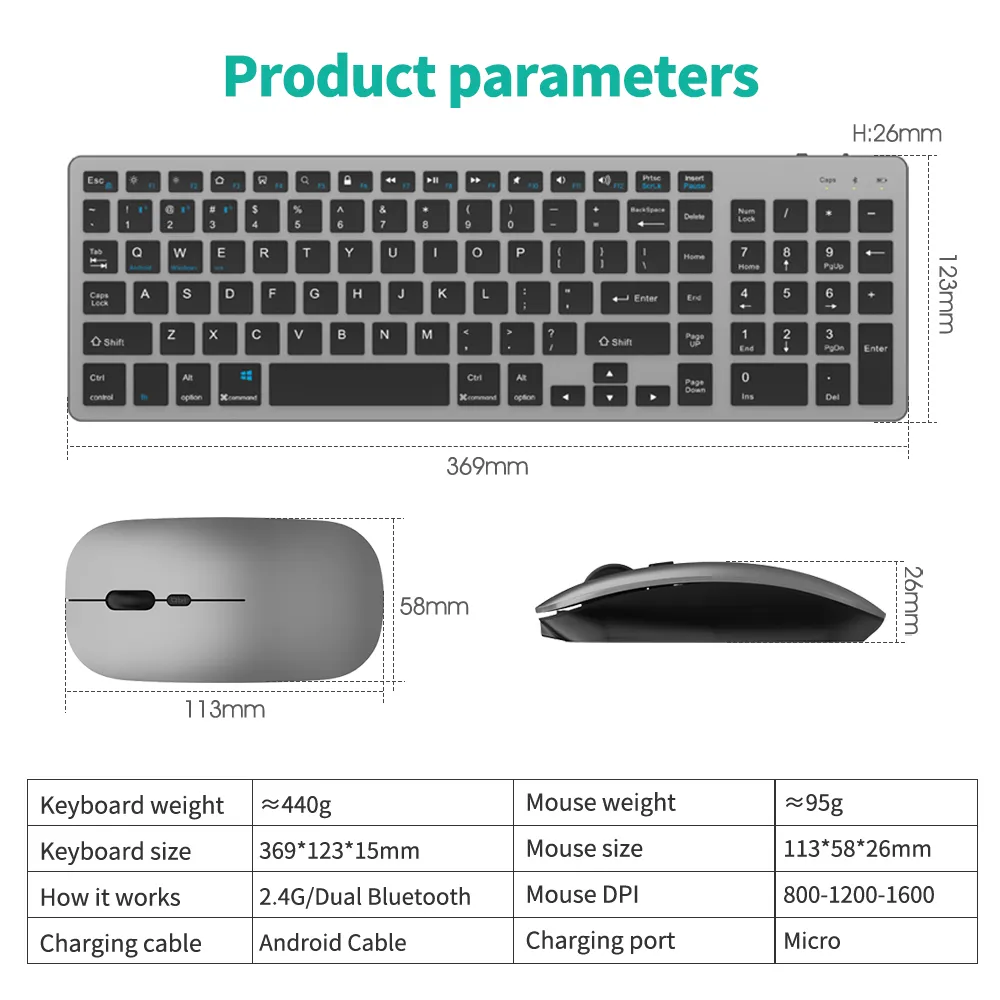
Keyboard battery capacity:300 mAh
Mouse battery capacity:500 mAh
Charging time:2-4 Hour
Sleep Auto≈5 min'
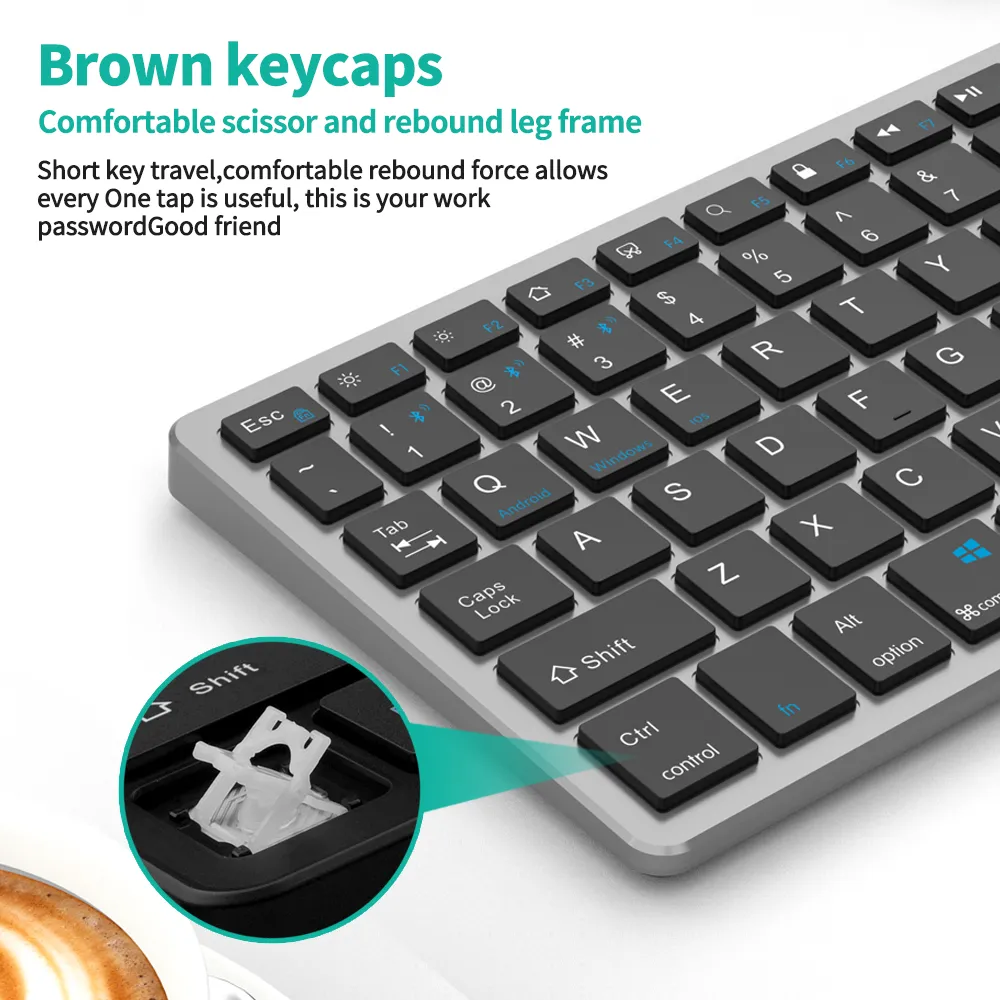
📣Comfortable scissor and rebound leg frame
Short key travel,convenient rebound styleallows every One tap is useful,this is your work passwordGood friend
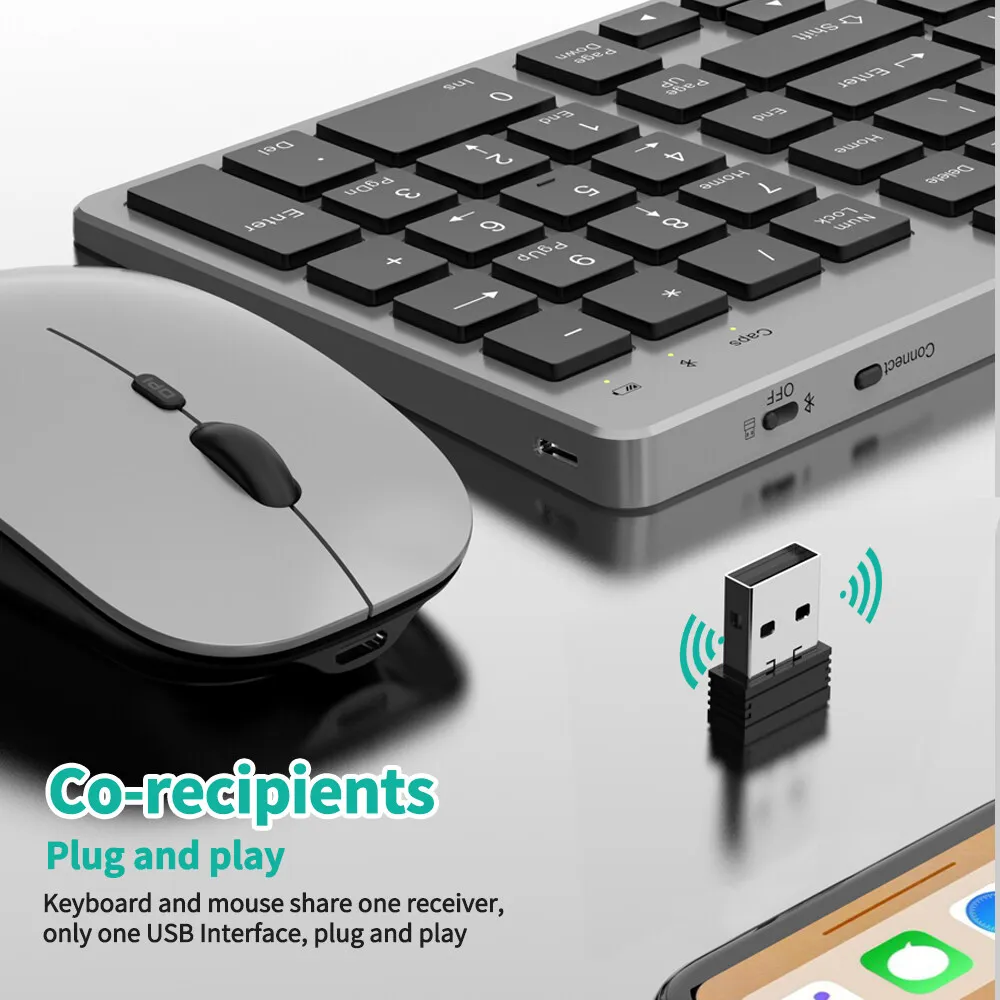
📣Plug and play
Keyboard and mouse share one receiver,only oneUSB interface,plug and play
🖱️Multimedia capabilities
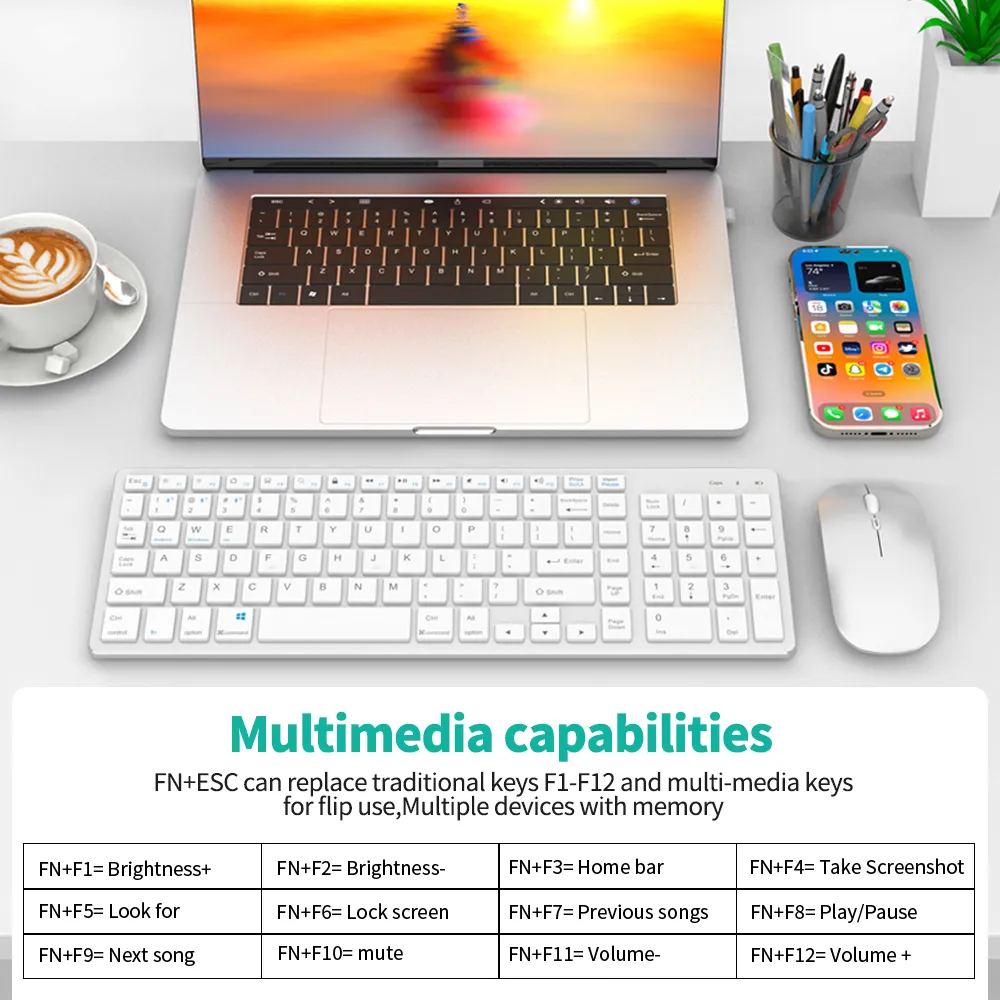
FN+ESC can replace traditional keys F1-F12 and multi-media keys for flip use,Multiple devices with memory
FN+F4=Take
FN+F1=Brightness+
FN+F2=Brightness-
FN+F3=Home bar
Läyar catch
FN+F5=Search
FN+F6=Lock screen
FN+F7=Previous song
FN+F8=Play/Pause
FN+F9=Next song
FN+F10=mute
FN+F11=Volume-
FN+F12=Volume+
✔️Connection instructions
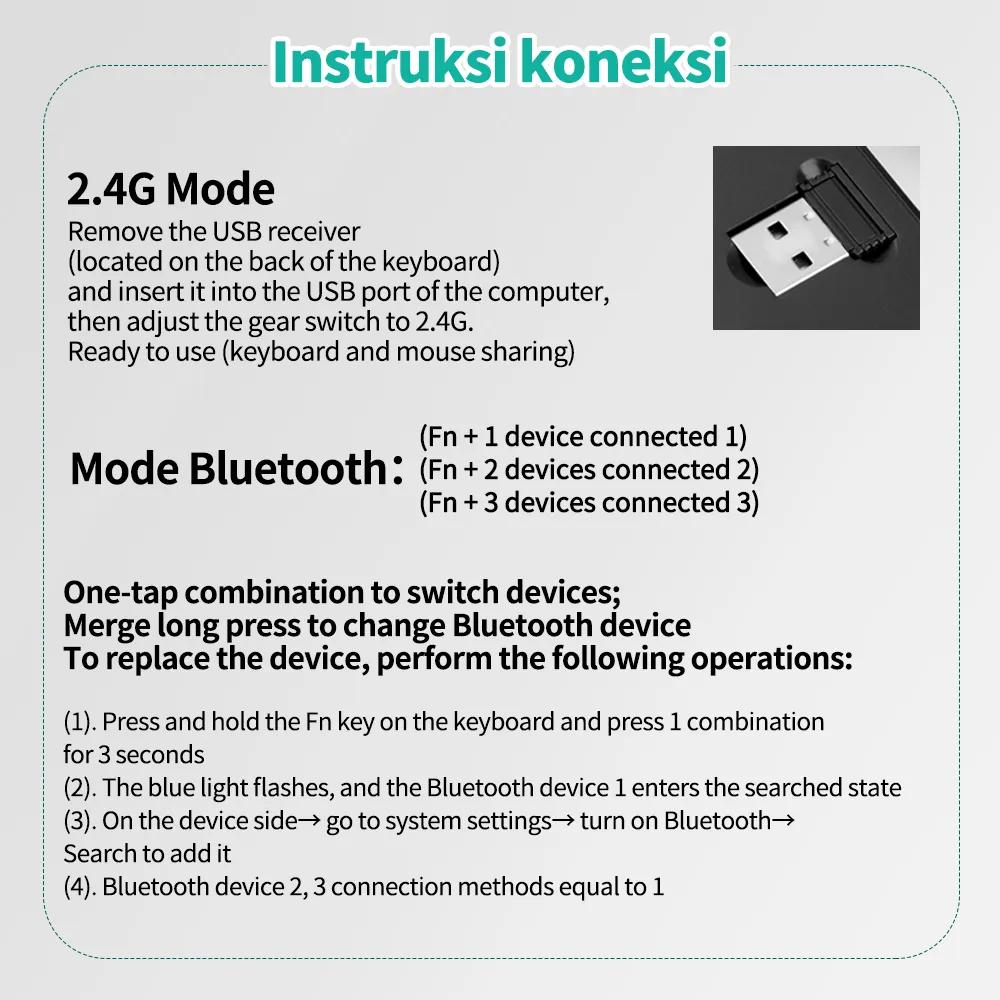
2.4G Mode
Remove the USB receiver
(located on the back of the keyboard)and insert it into the USB port of the computer,then adjust the gear switch to 2.4G. Ready to use (keyboard and mouse sharing)
(Fn+1device connected 1) Bluetooth mode:(Fn+2device connected 2)(Fn+3 device connected 3)
One-tap combination to switch devices;
Merge long press to change Bluetooth deviceTo replace the device, perform the following operations:
(1). Press and hold the Fn key on the keyboard and press 1 combination for 3 seconds
(2). The blue light flashes, and Bluetooth device 1 enters the searched state
(3). On the device side→go to system settings→turn on Bluetooth→look for it to add it
(4). Bluetooth device 2.3 connection method equals 1